Before MarkdownBrain
•
Notes scattered across apps
•
Endless folders and tags
•
Ideas disappear in scattered tools
•
Manual organization takes time
You write. AI finds relationships—never drafts your notes. It adds related notes and tags so you can see the structure already inside your work.
Notes scattered across apps
Endless folders and tags
Ideas disappear in scattered tools
Manual organization takes time
Write in plain Markdown
AI finds related notes and tags
Edit or overwrite every AI addition
Explore the connections in your graph
Write first. Then let AI expose useful context without touching your words.

Create or edit a Markdown note directly in your vault.
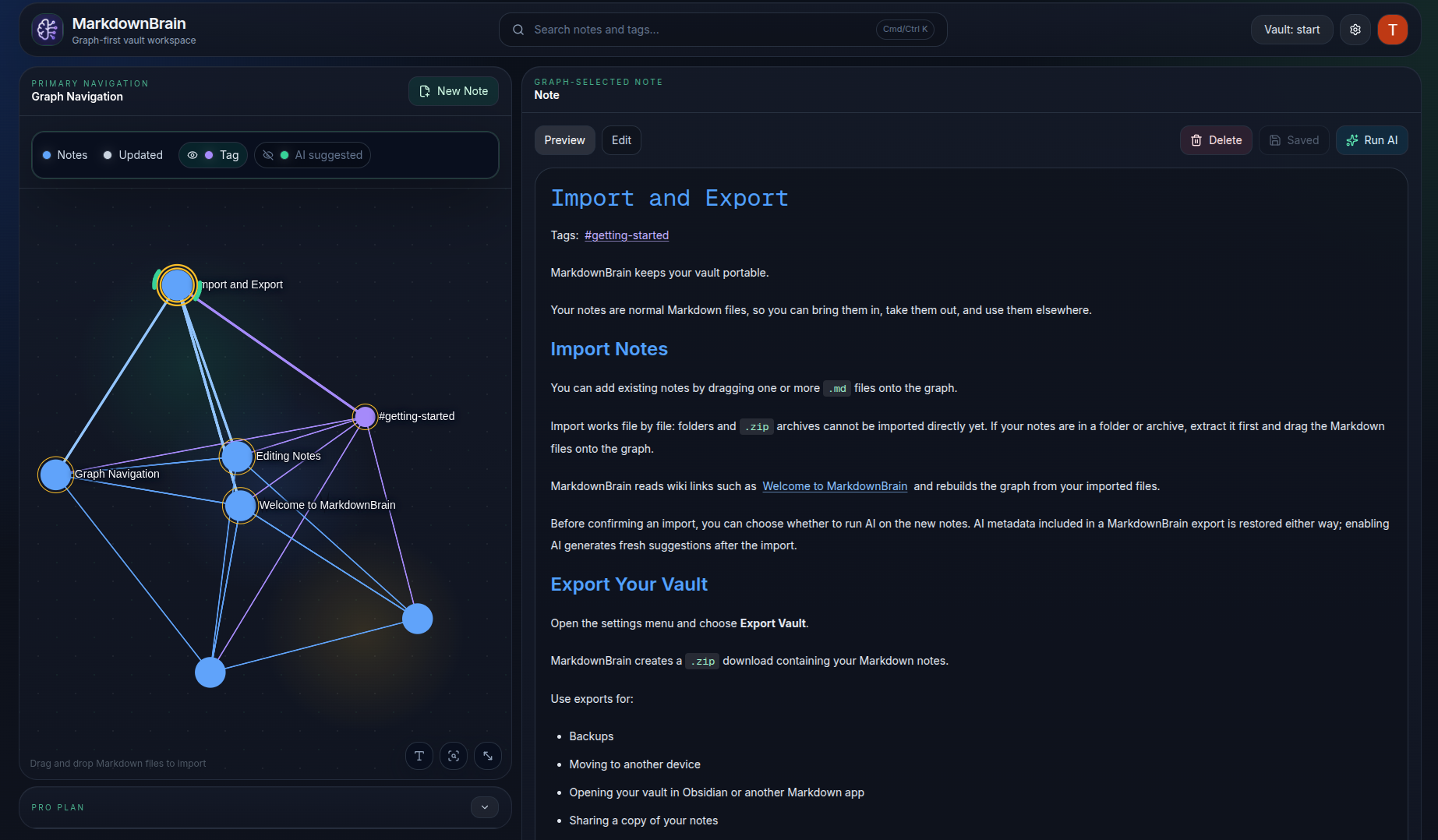
AI adds related-note and tag suggestions without changing what you wrote.
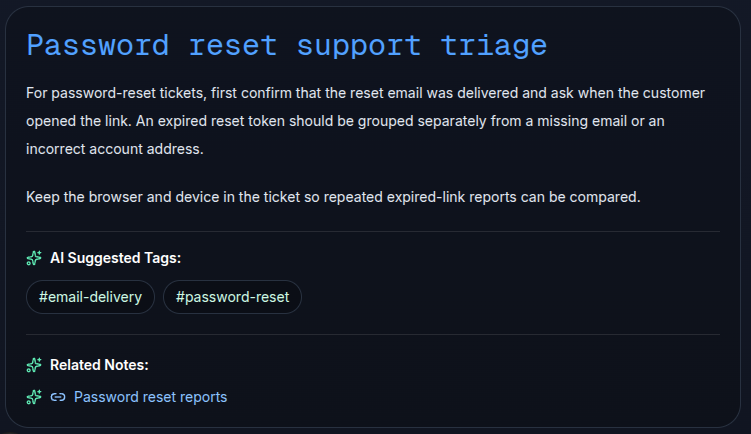

AI connects related notes and groups them into clusters, so you can navigate the shape of your thinking.
Your knowledge stays in normal Markdown files.
Bring existing .md files into your vault.
Download your vault as a ZIP whenever you want.
Yes. Your notes remain normal Markdown files.
Yes. You can import Markdown files into your vault.
Yes. Export your vault as a ZIP at any time.
No. You write the note body. AI only suggests related notes and tags, which you can edit or overwrite later.
Yes. You can start on Free and upgrade later if your vault grows.
MarkdownBrain uses Markdown files and wiki-style links, so your notes remain portable.
Create a workspace for the Markdown notes you already trust.